
MARS GROUP TV SETUP GUIDE

Mars Group TV Installation Guide

This guide explains how to install and configure Mars Group TV on your preferred device. Choose your device, install a compatible player, enter the activation details sent to you, and complete the recommended setup steps.
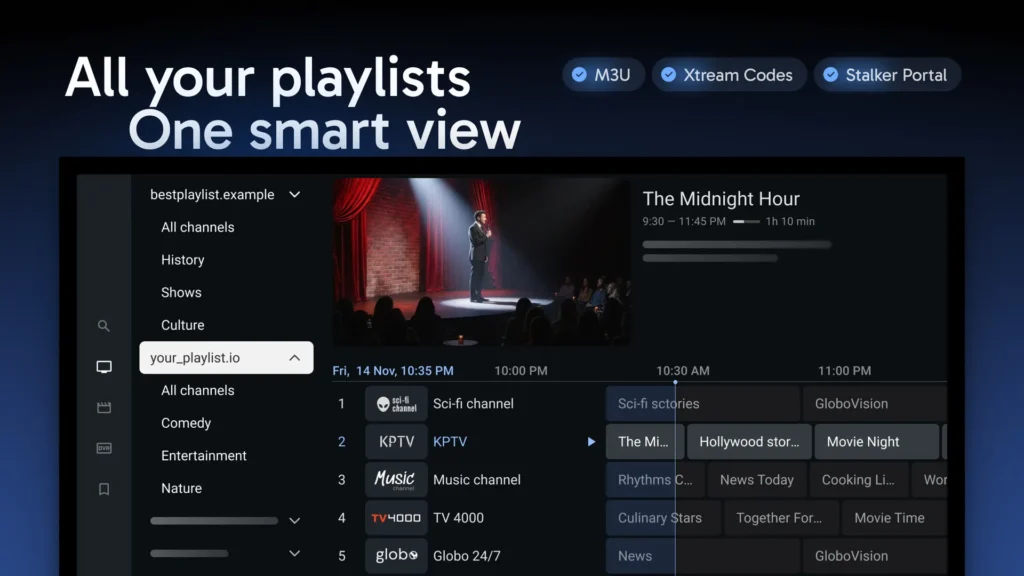
The instructions are suitable for beginners and cover Firestick, Android TV, Google TV, Samsung and LG Smart TVs, Apple TV, Roku, MAG devices, mobile phones, tablets, Windows, and macOS.

FIRESTICK · SMART TV · MOBILE · DESKTOP

Choose Your Device

Select your device and follow the step-by-step installation instructions.

Firestick

Easy IPTV setup

Smart TV

Compatible player apps

Android & Apple

Mobile and TV support

Windows & Mac

Desktop streaming

CHECK · RESTART · REFRESH

Before You Begin

Prepare your device and activation information before opening the player. 

Having everything ready can prevent most login and playlist-loading problems.

Your Activation Details

Keep your activation email or WhatsApp message ready before you begin. You’ll need your Xtream Codes login, M3U playlist, or Portal URL to complete the installation successfully. 
A Stable Internet Connection

Use a reliable Wi-Fi or Ethernet connection during setup. Make sure your device is updated and connected to the internet before installing your IPTV player.

A Compatible Player

Install a compatible IPTV player that supports your login method. Download it from an official source, keep it updated, and open it before starting the setup.

Important: Never share your username, password, M3U link, or Portal URL with anyone. Keep your subscription details private.

SELECT · AUTHENTICATE · STREAM

Choose Your Login Method

Mars Group TV supports different login methods depending on your device. Use the activation method included with your subscription details.

Xtream Codes

Log in using your username, password, and server URL. This is the recommended method because it automatically imports your channels, movies, series, and TV Guide. 

M3U Playlist

Paste the complete M3U playlist URL exactly as provided. Make sure the link is copied without any missing characters or extra spaces.

Portal URL

For compatible MAG devices, enter the Portal URL provided with your subscription. Follow any additional activation instructions if your device requires registration.

FIRESTICK CONFIGURATION

Install Mars Group TV on Firestick

Firestick is one of the most popular streaming devices for IPTV thanks to its performance and simple setup. 

Follow the steps below to install your subscription and start streaming.

Firestick Installation Guide

👻 Complete each step before launching your playlist:

👻 Connect your Firestick to a stable internet connection before starting 
👻 Install a compatible IPTV player on your Firestick device
👻 Open the application after the installation is complete
👻 Choose the login method included with your subscription
👻 Enter your activation details exactly as they were provided
👻 Save your account and wait for your content to load

Enhance Firestick Performance

🍿 Apply these tips for smoother playback:

🍿 Keep your Fire OS software updated for better compatibility
🍿 Remove unused applications to free available storage space
🍿 Restart your Firestick regularly to maintain smooth performance
🍿 Use the Fire TV mobile app for easier text entry
🍿 Connect through Ethernet if your adapter supports wired networking
🍿 Keep your IPTV player updated whenever a new version is available 

ANDROID TV INSTALLATION

Install Mars Group TV on Android TV & Google TV

Android TV and Google TV provide one of the easiest ways to enjoy IPTV. 

The installation process is simple and only takes a few minutes using a compatible IPTV player.

Android TV Setup Guide

👻 Complete these installation steps:

👻 Open the Google Play Store on your Android TV device
👻 Install a compatible IPTV player from the available results
👻 Launch the application after the installation finishes
👻 Select the login method included with your subscription
👻 Enter your activation details carefully before saving
👻 Allow the playlist to finish downloading completely

Android TV Optimization

🍿 Recommended performance tips:

🍿 Keep Google Play services updated for improved compatibility 
🍿 Clear the player cache if menus become slow to load
🍿 Enable hardware decoding when supported by your player
🍿 Remove unused apps to create additional storage space
🍿 Restart your Android TV after installing major updates
🍿 Connect a keyboard for faster username and URL entry

SAMSUNG & LG IPTV GUIDE

Install Mars Group TV on Samsung & LG Smart TV

Samsung and LG Smart TVs support compatible IPTV players available through their respective app stores. 

Simply install the player, enter your subscription details, and start streaming.

Smart TV Installation Guide

👻 Everything you need to get connected:

👻 Open the App Store available on your Smart TV
👻 Download a compatible IPTV player for your television
👻 Launch the application after installation has finished
👻 Select the supported login method for your subscription
👻 Enter your activation details exactly as provided
👻 Save your account and allow the playlist to synchronize

Enhance Your Smart TV

🍿 Enhance Your Smart TV

🍿 Keep your television software updated to the latest version 
🍿 Restart your Smart TV after installing new applications
🍿 Test your network connection from the TV settings menu
🍿 Close unused applications running in the background
🍿 Check available storage before installing additional apps
🍿 Follow your player’s activation instructions if required

APPLE TV STREAMING

Install Mars Group TV on Apple TV

Apple TV offers a smooth and responsive streaming experience with compatible IPTV players. 

Simply install a supported player, add your subscription details, and you’re ready to start watching.

Install Your IPTV Player

👻 Set up your Apple TV in a few simple steps:

👻 Open the App Store on your Apple TV device
👻 Install a compatible IPTV player from the available apps
👻 Launch the application after installation is complete  
👻 Select the login method included with your subscription
👻 Enter your activation details exactly as they were provided 
👻 Save your account and allow your playlist to load 

Apple TV Performance Tips

🍿 Get the most out of your Apple TV:

🍿 Keep tvOS updated to improve performance and compatibility 
🍿 Use the Apple TV Remote app for easier text entry  
🍿 Enable automatic app updates whenever they’re available 
🍿 Organize favorite channels for quicker everyday access 
🍿 Connect using Ethernet on supported Apple TV models  
🍿 Restart the player after major software or playlist updates

ROKU DEVICE GUIDE

Install Mars Group TV on Roku

Roku supports selected IPTV players depending on your region and device model. 

Install a compatible application, complete the login, and verify your subscription is working correctly.

Getting Started on Roku

👻 Install your player and connect your account:

👻 Open the Roku Channel Store from your device
👻 Search for a compatible IPTV player application
👻 Download and install the selected player
👻 Launch the application after installation finishes
👻 Accept any permissions requested during setup
👻 Continue to the account login screen

Best Practices for Roku

🍿 Enjoy smoother streaming with these tips:

🍿 Open the Roku Channel Store from your home screen
🍿 Install a compatible IPTV player if one is available
🍿 Launch the application after installation finishes
🍿 Select the supported login method for your account
🍿 Enter your subscription details exactly as provided
🍿 Save your account and wait for synchronization

MAG INSTALLATION GUIDE

Install Mars Group TV on MAG Device

MAG devices connect using a Portal URL instead of a playlist. 

Once your device is activated, the setup only takes a few minutes to complete.

Configure Your MAG Device

👻 Follow these steps to connect your Portal:

👻 Open the Settings menu on your MAG device
👻 Locate your device MAC Address if activation is required
👻 Open the Portal or Server Settings section
👻 Enter the Portal URL exactly as it was provided
👻 Save your settings before restarting the device
👻 Allow the portal to load all available categories

MAG Device Performance Tips

🍿 Improve stability with these recommendations:

🍿 Keep your device firmware updated whenever possible
🍿 Restart the device after changing portal settings
🍿 Use a wired Ethernet connection for better stability
🍿 Avoid changing portal settings unless instructed by support
🍿 Check your network settings if loading becomes slow
🍿 Write down your MAC Address for future assistance

ANDROID PHONE & TABLET SETUP

Install Mars Group TV on Android Phone & Tablet

Watch your favorite content anywhere using your Android phone or tablet. 

Installation is quick and requires only a compatible IPTV player and your subscription details.

Android Installation Guide

👻 Everything you need to get connected:

👻 Open the Google Play Store on your Android device
👻 Download a compatible IPTV player for your subscription
👻 Launch the application after installation is complete
👻 Choose the login method provided with your account
👻 Enter your activation details exactly as received
👻 Save your profile and allow your playlist to load

Android Best Practices

🍿 Optimize your device for better performance:

🍿 Keep the IPTV player updated through Google Play Store
🍿 Enable hardware decoding if supported by the application
🍿 Clear the application cache if menus become unresponsive
🍿 Disable battery optimization for longer viewing sessions
🍿 Connect to Wi-Fi whenever streaming high-quality content
🍿 Close background applications to improve overall performance

IOS DEVICE SETUP

Install Mars Group TV on iPhone & iPad

Enjoy a smooth IPTV experience on your iPhone or iPad using a compatible player. 

Follow the steps below to complete the setup in just a few minutes.

iPhone & iPad Setup Guide

👻 Everything you need to get connected:

👻 Open the App Store on your iPhone or iPad
👻 Download a compatible IPTV player for iOS devices
👻 Open the application after installation finishes
👻 Select the login method included with your subscription
👻 Enter your activation details exactly as provided
👻 Save your account and allow your playlist to synchronize

iOS Performance Tips

🍿 Get the best streaming experience on iOS:

🍿 Keep iOS updated for improved application compatibility
🍿 Enable automatic app updates through App Store settings 
🍿 Connect to Wi-Fi for faster playlist synchronization
🍿 Organize favorites for easier browsing and navigation
🍿 Restart the player after installing major iOS updates
🍿 Close unused applications to free available memory

WINDOWS & MAC SETUP

Install Mars Group TV on Windows & Mac

Windows and macOS provide a flexible viewing experience for users who prefer streaming on a desktop or laptop. Simply install a compatible IPTV player and connect your subscription to start watching. 

Desktop Installation Guide

👻 Install your player and connect your subscription:

👻 Download a compatible IPTV player for your computer 
👻 Install the software using the official installation file 
👻 Launch the application after installation is complete
👻 Choose the login method included with your subscription
👻 Enter your activation details exactly as provided
👻 Save your account and allow your playlist to load

Windows & Mac Best Practices

🍿 Improve stability and playback performance:

🍿 Allow the player through your firewall if requested
🍿 Keep your operating system updated to the latest version
🍿 Close unnecessary programs before starting your stream
🍿 Use a wired connection whenever it’s available
🍿 Restart your computer after installing major updates
🍿 Keep your IPTV player updated for better compatibility

Troubleshooting

If you experience any issues while setting up or using your Mars Group TV subscription, the solutions below cover the most common problems. 

Most playback, login, and connection issues can be resolved in just a few minutes by following the recommended steps.

Login & Activation Issues

Username or Password Not Accepted

🔑 Review Your Login Information:

Double-check that your login details match the information provided with your subscription. Usernames, passwords, and server URLs are case-sensitive, so even a small typing mistake can prevent successful authentication. 

Playlist or Portal Won't Load

🌐 Verify Your Network Settings:

Verify that your internet connection is active before trying again. If you’re using an M3U playlist or Portal URL, make sure the complete address has been copied without removing or changing any characters. 

Subscription Has Expired

📩 Renew or Reactivate Your Account:

If your subscription has reached its expiration date, the application may stop loading channels or display authentication errors. Contact our support team if you need to renew your service or verify your account status. 

Streaming & Playback Issues

Buffering During Playback

📶 Improve Your Connection Quality:

Streaming quality depends heavily on your internet connection. Restart your router, close other bandwidth-heavy applications, and use a wired Ethernet connection whenever your device supports one. 

Channels Take Too Long to Load

⚡ Speed Up Channel Loading:

Restart your IPTV player and allow it enough time to refresh the playlist. Devices with limited storage or memory may perform better after closing unused applications running in the background. 

Missing TV Guide Information

🗓️ Update EPG Information:

Electronic Program Guide (EPG) information may require additional time to download after your playlist loads. Leave the application open for several minutes and restart it if guide information still does not appear. 

Device Performance Issues

Application Closes Unexpectedly

🔄 Check for App Updates:

Make sure you’re using the latest version of your IPTV player. Updating both the application and your device software often resolves stability issues and improves overall compatibility. 

Device Feels Slow

🚀 Improve Device Performance:

Free up storage space by removing applications you no longer use. Restarting your device regularly also helps clear temporary memory and improve general performance. 

No Sound or Picture

📺 Check Your Display Settings:

Check your television or monitor settings before troubleshooting the application itself. Switching channels or restarting the player can often restore normal audio and video playback. 

Mars Group TV Installation FAQ

 Getting started is easier when you have the right answers. 

Explore common questions about supported devices, installation steps, login methods, and troubleshooting to complete your setup with confidence.

01 — Which application should I install?

The correct application depends on your device and regional app store.

TiviMate is suitable for many Android-based devices. Other platforms require a compatible player that supports your supplied login format.

Check the activation message sent to your email or WhatsApp account.

Look for your server URL, username, password, M3U link, or portal information.

Use the format included in your activation message.

When both options are supplied, Xtream Codes usually provides the simpler setup.

No.

Your subscription details connect to a compatible third-party player that must be installed separately.

Some third-party players require their own licence.

That fee is controlled by the player developer rather than Mars Group TV.

You may configure more than one personal device.

Simultaneous use must remain within the number of connections included in your plan.

Support can guide you through the setup and verify your activation details.

Never provide remote access, payment information, or device passwords to an unverified person.

Save your:

  • Activation details
  • Playlist name
  • Favourites
  • Parental-control settings

Reinstalling an application may remove stored preferences.

Check the time zone, region, date, and clock settings on both the device and player.

Refresh the programme guide after correcting them.

Include:

  • Your device type
  • The player name
  • The exact error message
  • A screenshot when possible

Never post your complete login details publicly.

Tell our support team which device and player you are using.

Include the exact error message or a clear screenshot so the problem can be identified faster.

Contact Setup Support

Read the Main FAQ

Keep your complete login details private. Mars Group TV will never ask you to post your subscription credentials publicly.

🍿Still Need Help Setting Up Mars Group TV?

👻 If you run into any issues during installation, our support team is here to help.
Whether you're using a Firestick, Smart TV, Android device, Apple TV, MAG, or computer, we'll guide you through the setup process.

Keep your complete login details private. Mars Group TV will never ask you to post your subscription credentials publicly.